Shared Call Appearance enables real-time call status sharing among a group of accounts, facilitating call answering and placing for group members. When an incoming call arrives, all registered phones within the Shared Line group will receive the call request and ring simultaneously. Once any phone answers the call, all other devices stop ringing, and the call will not be marked as a missed call on those devices.
Private Line is the counterpart of Shared Line, where only the two parties on the call can view the call status of the line.
This document applies to the following models: BX3S, BX4, BX5S, BX6, BX7, BX7C, GP210, GP210i, BX3U, BX4U, BX5U, BX6U.
This document is intended for users utilizing the Broadsoft SCA feature on SIP phones.
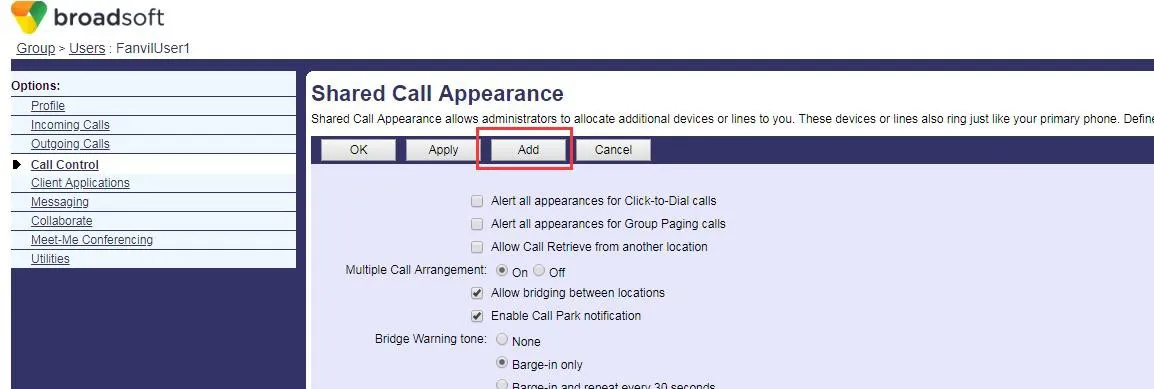
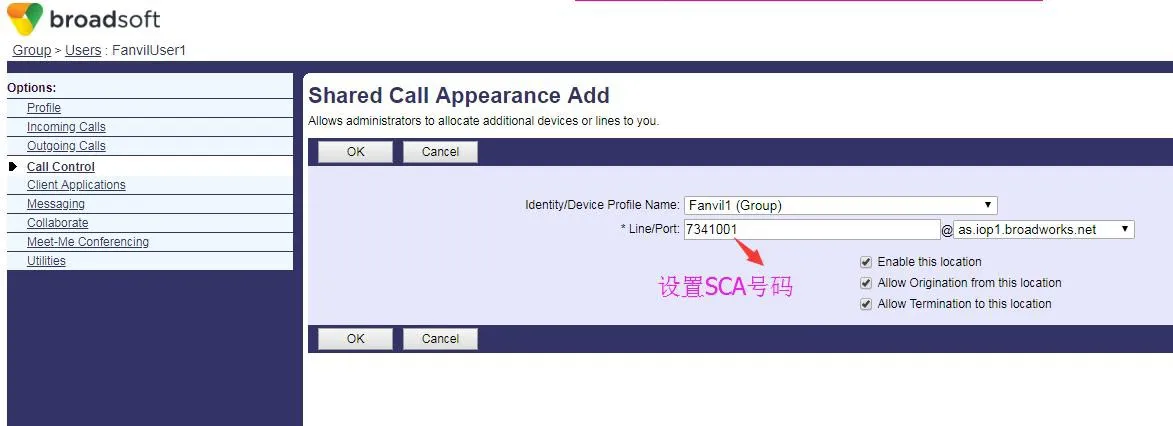
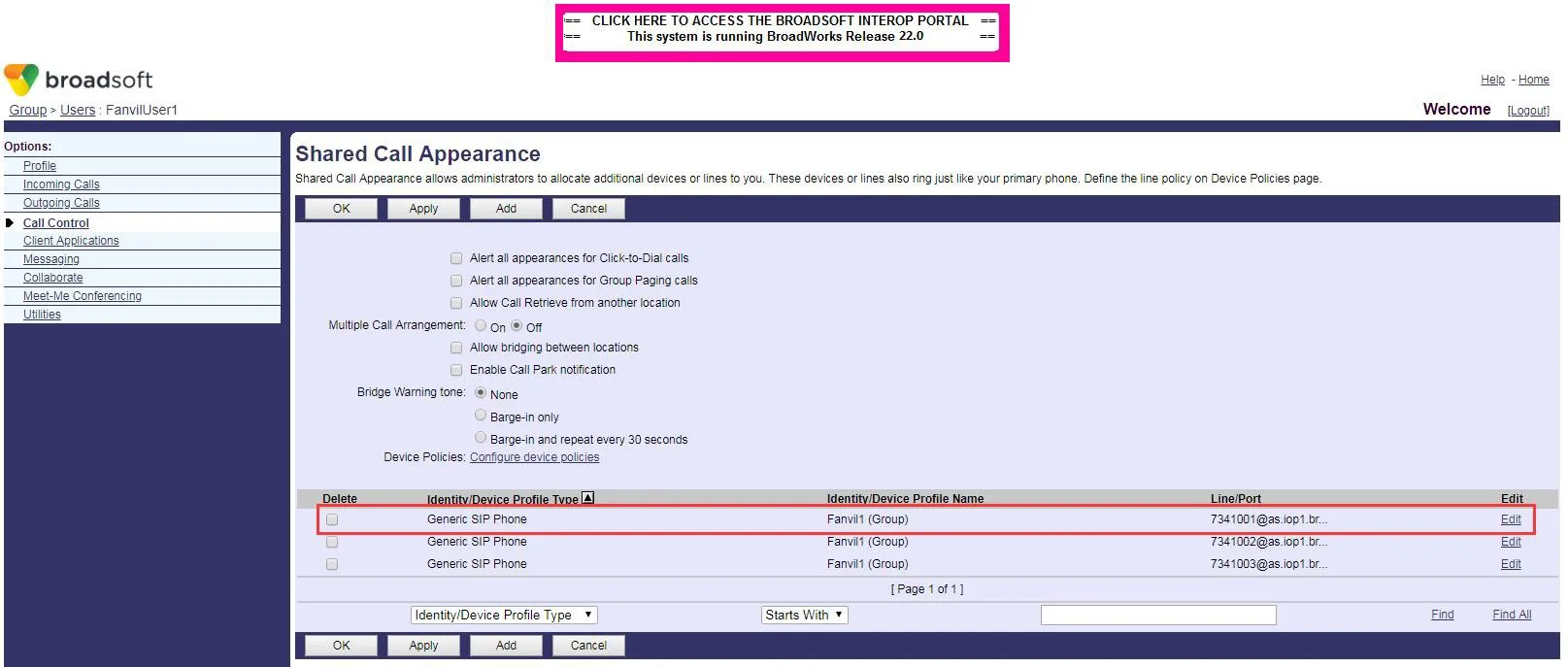
To use this feature, a shared group must be created. Broadsoft provides a user-friendly creation process: log in to the BroadWorks management portal, navigate to Group > User > Call Control > Shared Call Appearance, and click Add to create one or more shared groups (existing accounts can also be used if previously created). See the screenshots below:


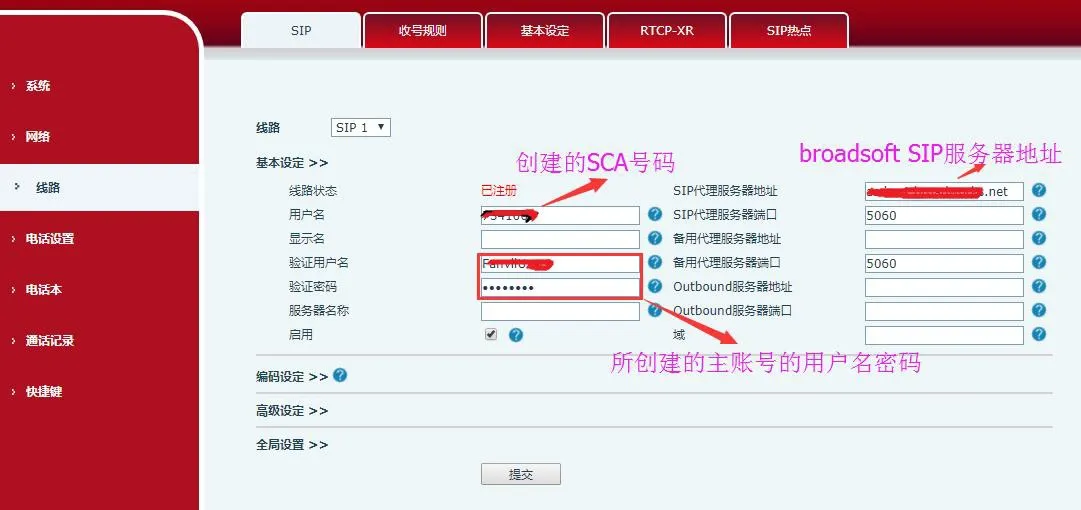
After creating the group, you can register the newly created account on multiple terminals. Use the username and password of the primary account for registration, and enter the newly created SCA account name as the SIP User. In practice, all group members share the configuration and attributes of the primary account.
Register the phone to the BroadSoft server, and register the created number on multiple terminals.

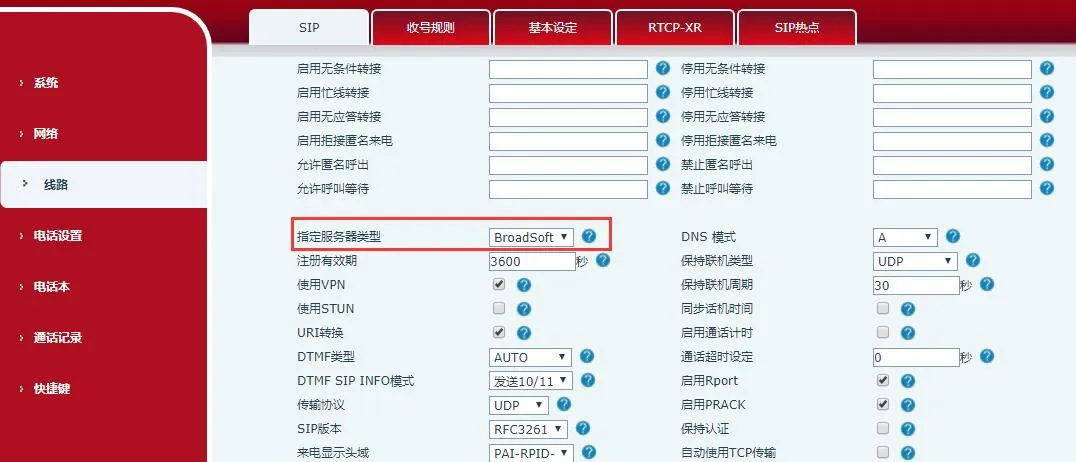
Once the phone is registered to the BroadSoft server, configure the server type: log in to the phone's web interface, go to Line > SIP > Advanced Settings, and set the server type to BroadSoft. See the screenshot below:

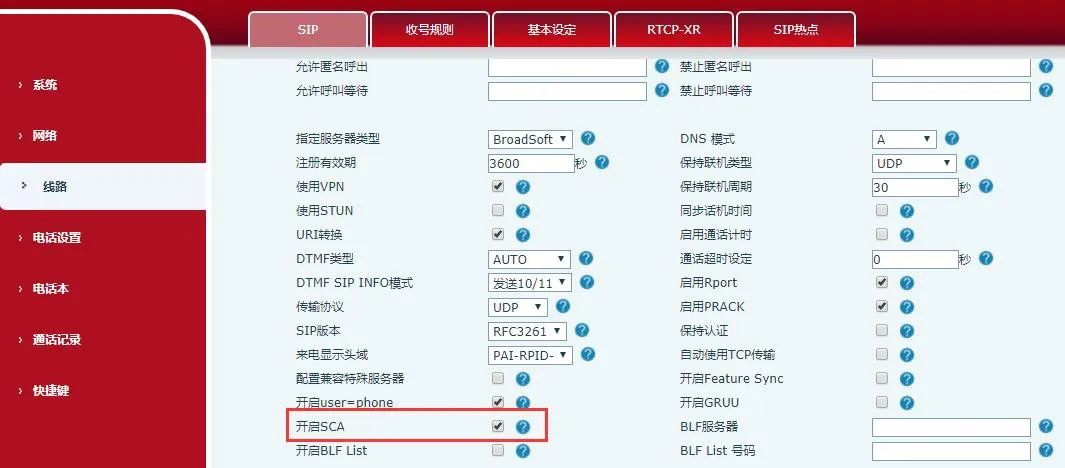
To enable the SCA feature on the phone: log in to the phone's web interface, navigate to Line > SIP > Advanced Settings, and enable SCA (the registered line will operate as a Private Line if SCA is disabled). See the screenshot below:

After configuring and successfully registering the account, you can configure Dsskey on the Function key page to map to the SCA-enabled Line for real-time call status monitoring. Each Line key represents one Call Appearance. Refer to the Line Key LED section for call status indications.
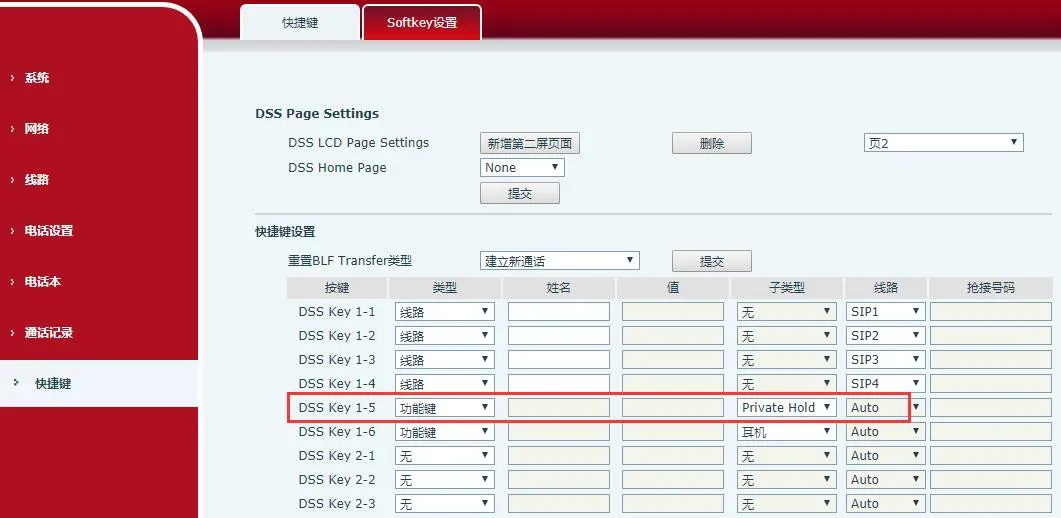
For convenient Private Hold operations, configure a Dsskey as a Private Hold key on the Function key page. Note that the Public Hold function is available via the softkey-hold during an active call.

Note: All phones registered to the BroadSoft server must complete the above configuration steps to use the SCA feature properly.
To monitor group call status conveniently, configure DSSKEY to map to the SCA-enabled line. The Line LED status varies with different call states as follows:
| State & Direction | Local | Remote |
| Idle | Off | Off |
| Seized | Green Solid | Red Solid |
| Progressing (outgoing call) | Green Fast Blink | Red Fast Blink |
| Alerting (incoming call) | Green Fast Blink | Green Fast Blink |
| Active | Green Solid | Red Solid |
| Public Held (hold) | Green Slow Blink | Red Slow Blink |
| Held-private (private hold) | Green Slow Blink | Red Solid |
| Bridge-active (Barge-in) | Green Solid | Red Solid |
| Bridge-held | Green Solid | Red Solid |
To help users better understand the feature, we provide the following practical scenarios.
In these scenarios, a manager and an administrative assistant register the same SCA account with all configurations completed as per the above steps.
Scenario 1: When an incoming call reaches the SCA account, both the manager’s and assistant’s phones ring. If the manager is busy, they can reject the call to stop their phone from ringing; the assistant’s phone will continue ringing until she rejects/answers the call or the call times out.
Scenario 2: When the assistant answers an incoming call and needs the manager to take over, she can press the Public Hold key to place the call on hold. The manager can then press the corresponding SCA Line key to retrieve and resume the call.
Scenario 3: When the manager is on an important call with a customer and needs to step away temporarily, they can press the Private Hold key to prevent other users from retrieving the call.
Scenario 4: When the manager is on a call with a customer and needs the assistant to join for note-taking, the assistant can press the corresponding SCA Line key to barge-in and join the call.