本指南介紹如何上傳自定義WAV音頻文件並通過預定播放、Active URI和HTTP API在工業對講設備上播放它們。
工業對講設備可能需要在特定場景下播放自訂音訊檔案。本文說明如何上傳自訂音訊並在工業設備上播放。
所有工業對講設備。
① 工業對講設備一台(以 BHP-SOS16V 為例)、PoE 交換器一台(或 DC 電源)。將設備連接到交換器。
② 一台調試電腦,連接到同一台交換器,以確保網路連通性。
將 BHP-SOS16V 和電腦連接到同一台交換器。連接圖如圖 1 所示。
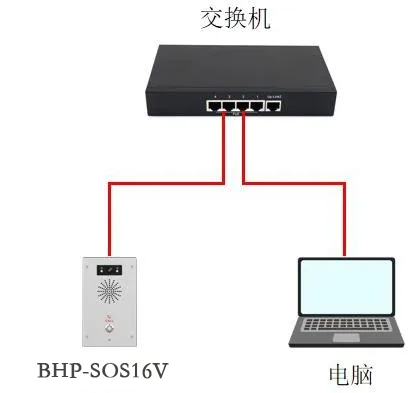
圖 1 設備與電腦連接圖
要播放自訂音訊,必須先上傳檔案,然後使用多種播放方法之一。詳細步驟如下。
可透過網頁介面上傳音訊檔案。登入設備(以 BHP-SOS16V 為例),前往 系統 → 升級 → 鈴聲升級,然後上傳您的 WAV 檔案。
格式:WAV
建議大小:≤ 200 KB
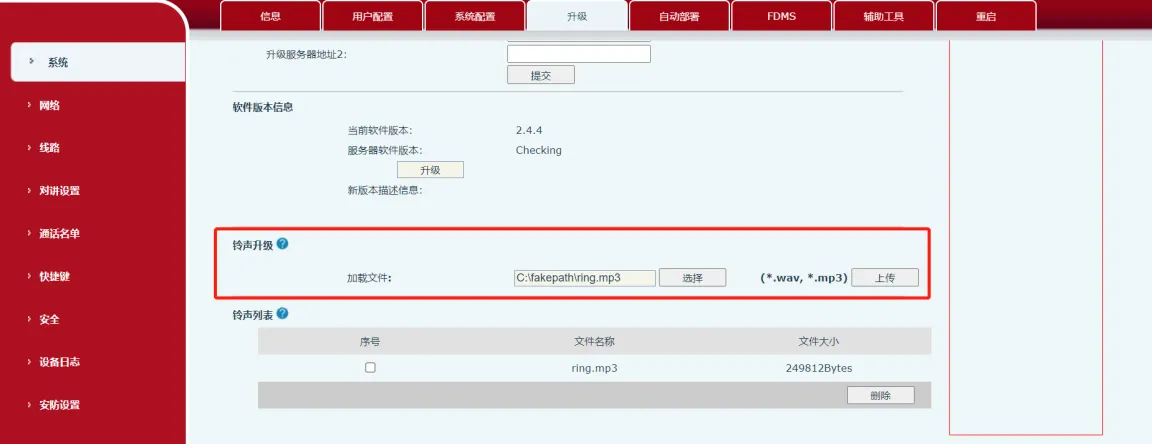
圖 2 上傳自訂音訊
共有三種播放方法。詳細說明如下。
不支援: BHP-SOS10, BHP-SOS10V, BHP-SOS10D
步驟:
(1) 登入設備網頁介面(預設 admin/admin)。
(2) 前往 對講機設定 → 時間管理,並如圖 3 所示進行設定:
① 名稱:自訂
② 類型:排程音訊播放
③ 音訊路徑:本機(或 USB/SD(若外部儲存可用))
④ 播放模式:循環或一次
⑤ 設定重複週期與有效時間段
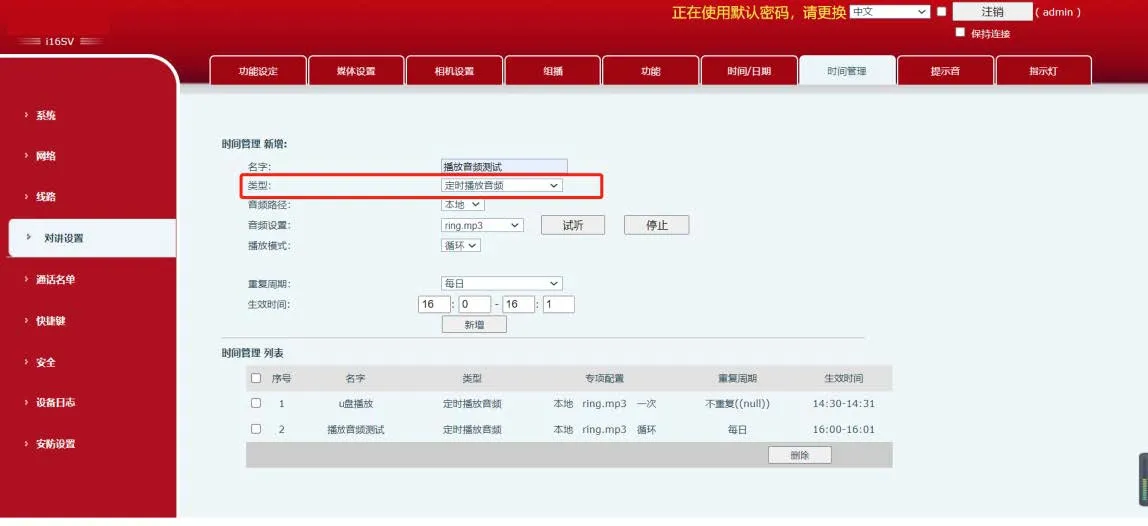
圖 3 排程音訊播放
(3) 音訊將在設定的時間段內自動播放。
不支援: BHP-SOS10, BHP-SOS10V, BHP-SOS10D, BHP-SOS11, BHP-SOS11V
格式: (1) ActiveURI:http://IP/cgi-bin/audio_play?name=2.wav&path=usb&takelist=xxx&action=start×=1
| 參數 | 值 / 說明 | 備註 |
| Action | Start, Stop, Pause, Next, Prev | |
| Times | 0=循環,1=一次,2=兩次,N=重複 N 次 | |
| Takelist | 排程任務名稱 | |
| Path | USB:從 USB 隨身碟播放 |
(2) 範例:http://172.18.8.15/cgi-bin/audio_play?name=2.wav&action=start×=1
在瀏覽器中輸入 URL。設備會播放音訊並返回 200OK,如圖 4 所示。

圖 4 主動 URI 播放
不支援: BHP-SOS10, BHP-SOS10V, BHP-SOS10D, BHP-SOS11, BHP-SOS11V
請求格式: (1) 客戶端 → 伺服器請求:
(?xml version="1.0" encoding="UTF-8" ?)
(FanvilPhoneExecute beep="yes")
(ExecuteItem)URI="cmd:audio_play" name="xxx.wav" action="start/stop/pause" times="0/1/2/n"(/ExecuteItem)
(/FanvilPhoneExecute)
cmd:audio_play:播放音訊命令
name:音訊檔案名稱
action:start, stop, pause
(2) 伺服器 → 客戶端回應:
(?xml version="1.0" encoding="UTF-8"?)
(FanvilPhoneExecute)
(ExecuteItem)URI="cmd:audio_play" name="ring.wav" action="start" times="1"(/ExecuteItem)
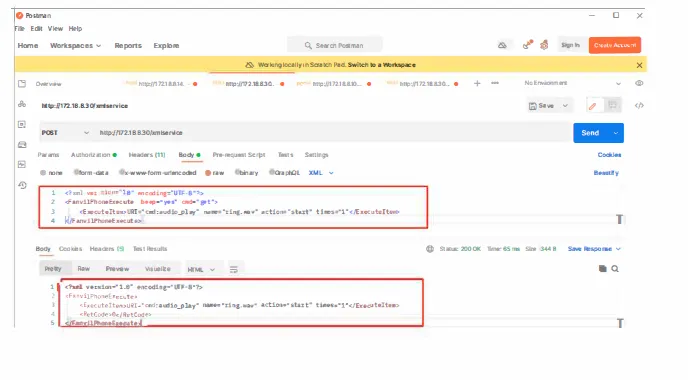
(RetCode>0(3) 範例:
使用 Postman 或 ApiPost 發送 POST 請求至:
http://DeviceIP/xmlservice
點擊 發送 即可播放音訊。