
SIP電話配置文件加密指南介紹了通過Windows/Linux上的DSC工具進行AES256加密、安全密鑰設置和用於批量配置的加密配置使用,以保護SIP帳戶、密碼和敏感數據。
由於批量部署具備較高便利性,越來越多客戶使用此方式部署 IP 電話。然而,在批量部署過程中,配置文件不可避免地會透過網路傳輸。配置文件中包含大量敏感資訊,例如 SIP 帳號與密碼、電話管理員密碼、網路電話簿帳號憑證等。
為了防止資訊洩露,我們可以使用加密工具對配置文件進行加密。本文檔主要包含以下兩個部分:
如何加密配置文件
如何在批量部署中使用加密配置文件
本文檔適用於我司所有系列 IP 電話。
我們可以使用 DSC 工具透過 AES256 對配置文件進行加密。工具可從以下地址下載:http://download.fanvil.com/tool/AES%20tool/encryption.7z。以下範例說明如何加密配置文件:
下載 DSC 工具後,將其解壓並把資料夾放置在 F 磁碟。
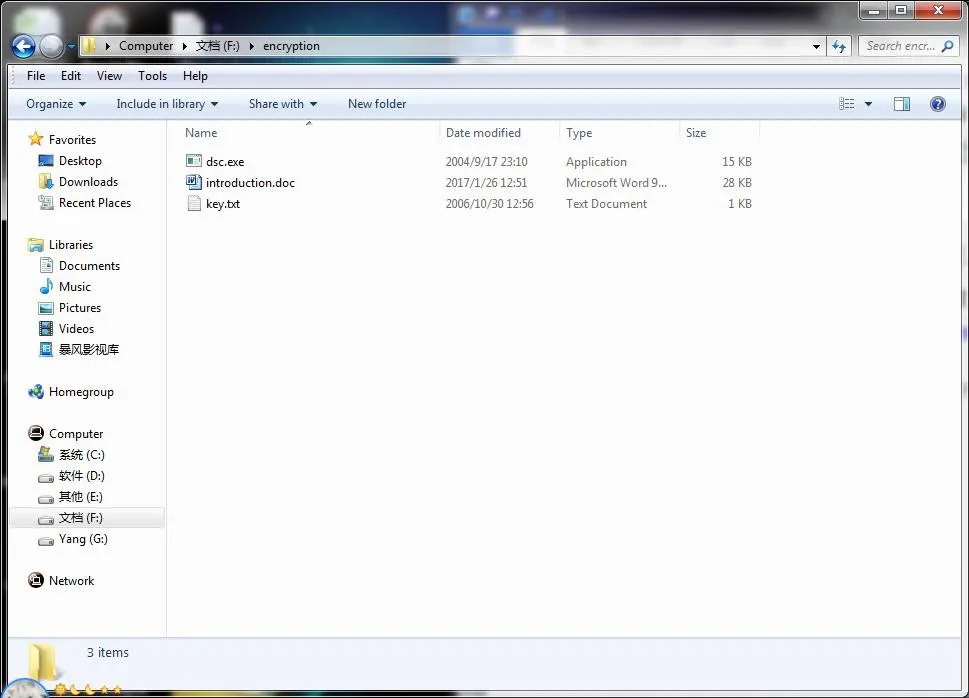
開啟 key.txt,使用預設的 64 位元金鑰,或輸入新的隨機 64 位元金鑰,然後儲存文件。
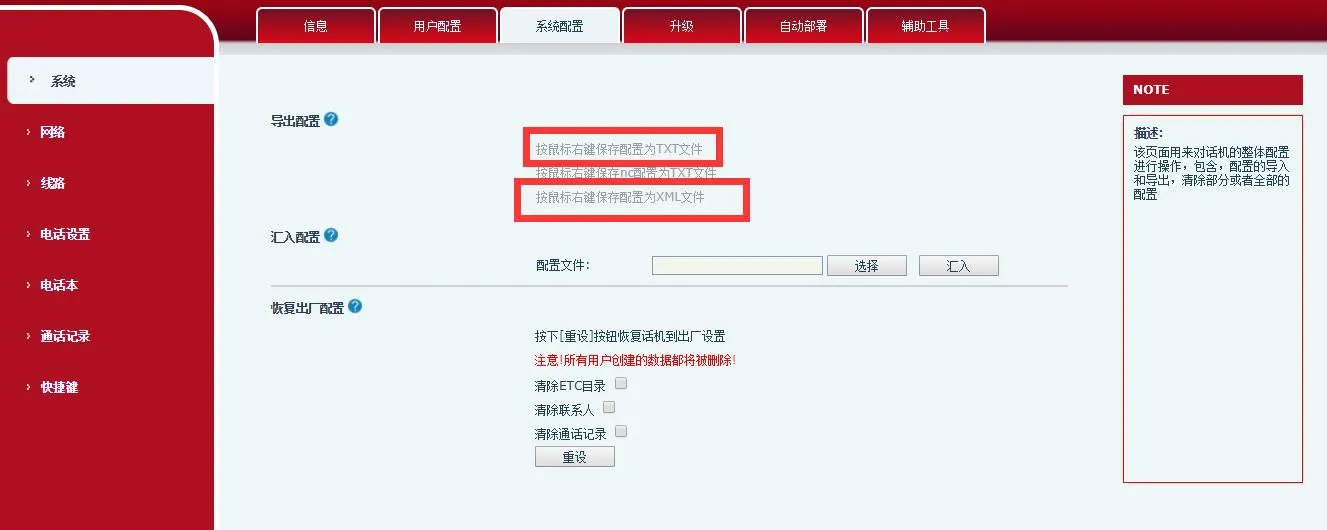
從電話的 Web 介面下載配置文件,修改必要資訊,將文件重新命名為 config.txt,並放入 F 磁碟的 encryption 目錄中。
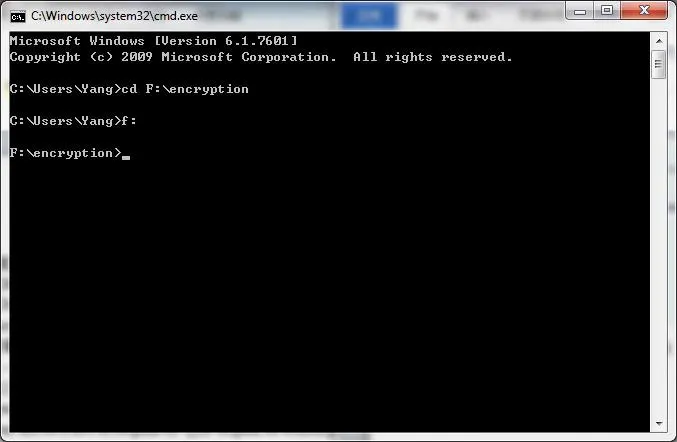
按下 Win + R,輸入 cmd 開啟 DOS 命令提示字元,然後使用下圖所示命令進入 encryption 目錄。
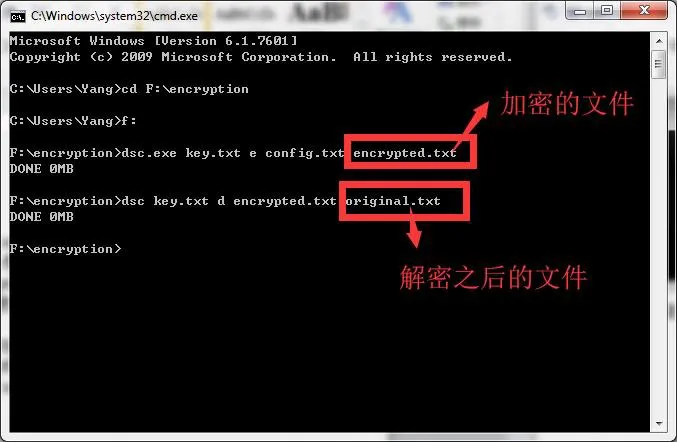
使用以下命令進行加密或解密:
加密命令:
dsc.exe key.txt e config.txt encrypted.txt
- dsc.exe:工具執行檔
- key.txt:金鑰文件
- e:加密標識
- config.txt:來源配置文件
- encrypted.txt:輸出的加密文件,可自訂名稱
解密命令:
dsc.exe key.txt d encrypted.txt original.txt
- d:解密標識
- encrypted.txt:加密來源文件
- original.txt:輸出的解密文件,可自訂名稱
從此連結下載原始碼:https://1drv.ms/u/s!AhLXW_VNOC9LgR6TiW5931ydvEP5
在 Linux 上解壓下載的套件,進入目錄,並執行編譯命令以產生 DSC 工具: gcc dsc.c rijndael-alg-fst.c rijndael-api-fst.c -o dsc
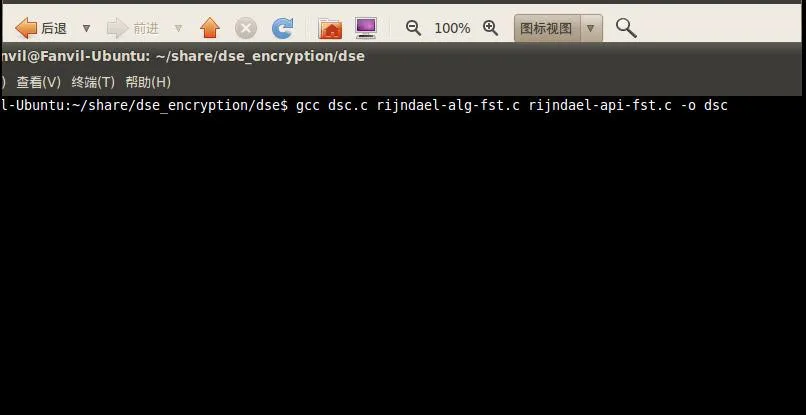
執行後,Linux 中將產生 dsc 工具,如下圖所示。
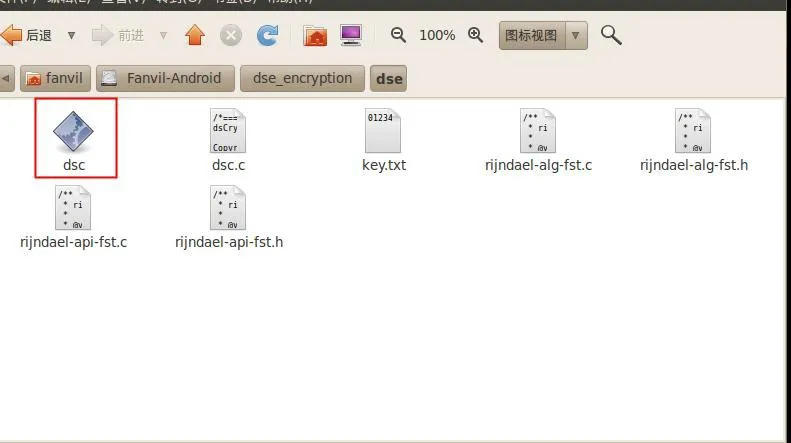
將需要加密或解密的文件放置在與 DSC 工具相同的目錄中。
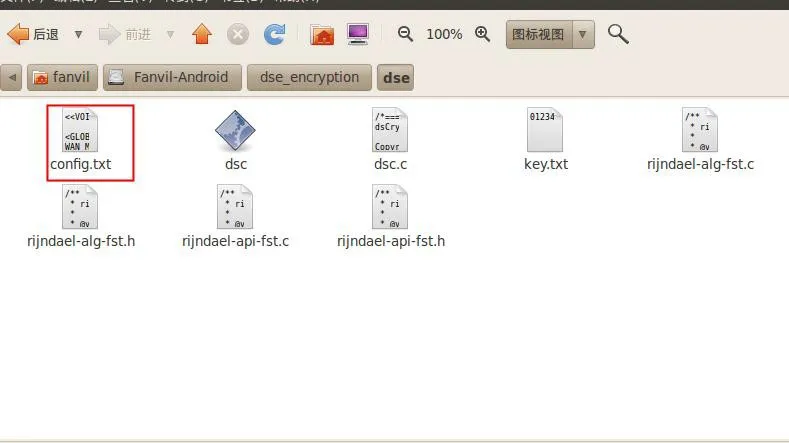
加密命令範例:
dsc key.txt e config.txt encryption.enc
- dsc:工具名稱
- key.txt:金鑰文件
- e:加密
- config.txt:待加密文件
- encryption.enc:加密輸出文件
解密命令範例:
dsc key.txt d encrypted.txt config_after.txt
- d:解密
- encrypted.txt:待解密文件
- config_after.txt:解密輸出文件
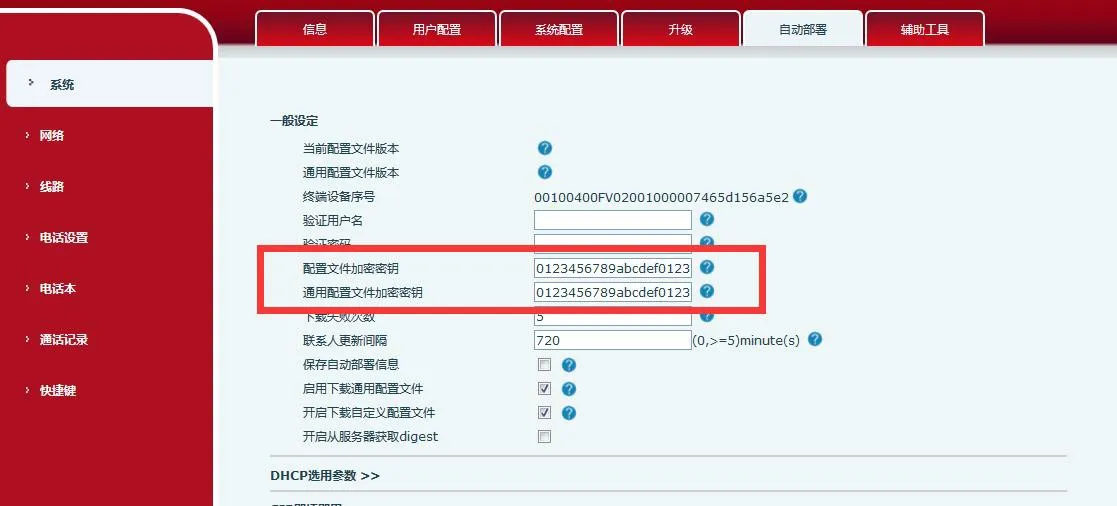
若要使用加密配置文件部署電話,必須在電話的 Web 介面中配置加密金鑰,如下圖所示:
最後,將第 2 節產生的加密配置文件放置到 provisioning 伺服器上,並在 IP 電話上配置正確的伺服器設定。詳細資訊請參考文檔 Auto Provisioning Mechanism, Environment Setup, and Configuration File Guide。